This document descripts how to set
up a vacation auto responder.
Your webmail has the tools to set up your auto responder so you will need to log into your webmail account first.
Now follow these steps to set up your vacation auto responder.

1) After logging into webmail, you should see the following menus at the top of the web page. Click on "Filters" on the far right hand side.
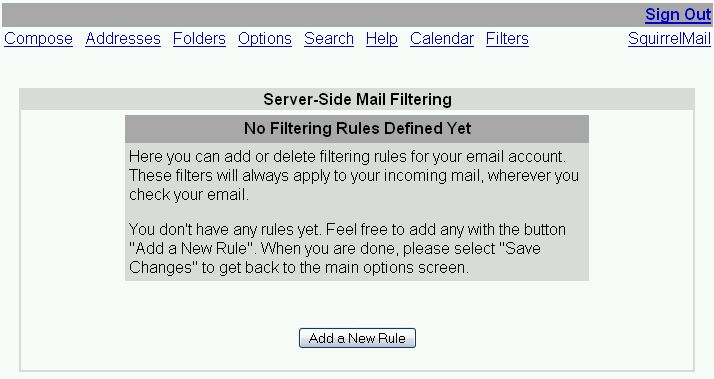
2) Click on the "Add a New Rule" buttton to start the Wizard.
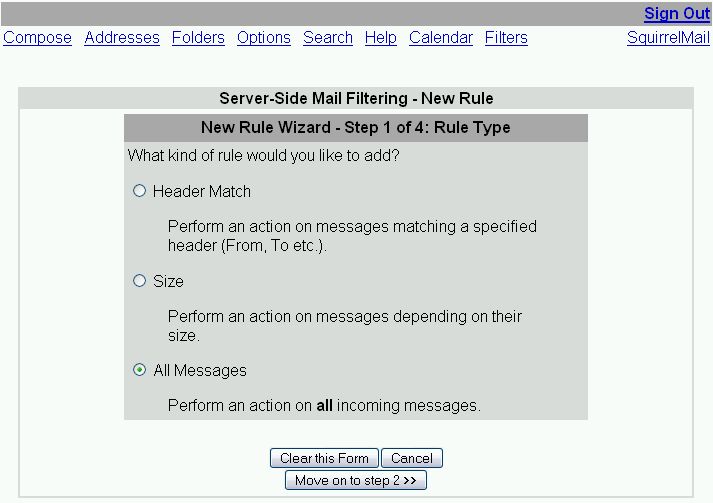
3) Click on "All Messages" and then click on "Move on to step 2 >>" button.
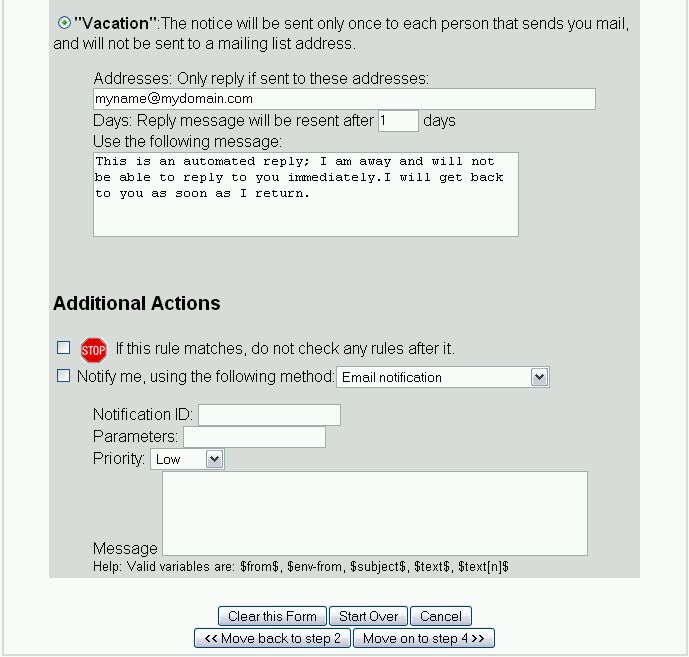
4) Scroll down to "Vacation" and select the round button. In the "Addresses:" Field, type in your e-mail address. If you have more than one e-mail address that gets sent to you, seperate them by using a comma. Then at the bottom of the web page, click on the "Move on to step 4" button.

5) Your rule is now created. Click on the "Finished" button.
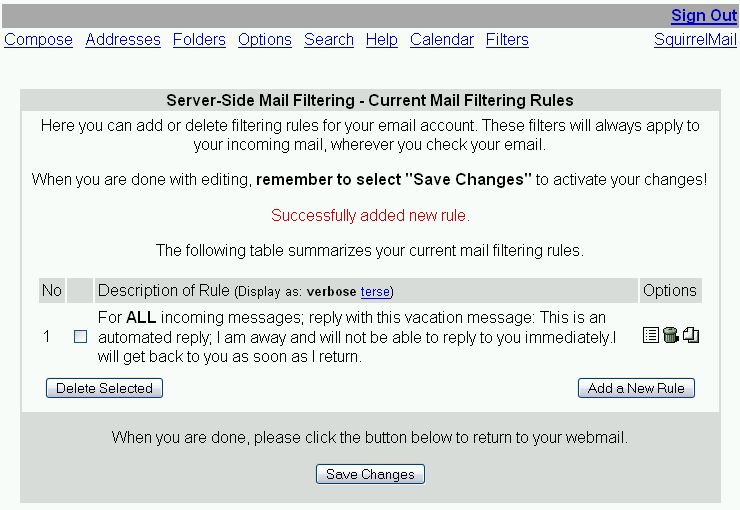
6) Click on the "Save Changes" button to save the rule to the server.
Your webmail has the tools to set up your auto responder so you will need to log into your webmail account first.
Now follow these steps to set up your vacation auto responder.
1) After logging into webmail, you should see the following menus at the top of the web page. Click on "Filters" on the far right hand side.
2) Click on the "Add a New Rule" buttton to start the Wizard.
3) Click on "All Messages" and then click on "Move on to step 2 >>" button.
4) Scroll down to "Vacation" and select the round button. In the "Addresses:" Field, type in your e-mail address. If you have more than one e-mail address that gets sent to you, seperate them by using a comma. Then at the bottom of the web page, click on the "Move on to step 4" button.
5) Your rule is now created. Click on the "Finished" button.
6) Click on the "Save Changes" button to save the rule to the server.
Delete Vacation Auto
Responder
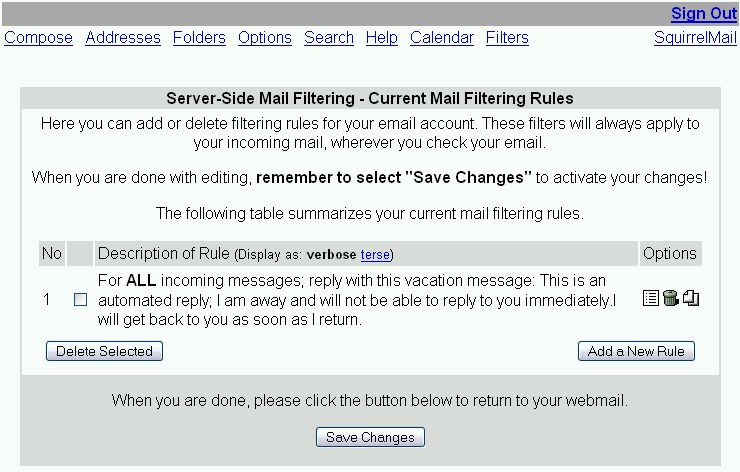
1) To delete the vacation auto responder, click on the little trash can under options and then click the "Save Changes" button.
1) To delete the vacation auto responder, click on the little trash can under options and then click the "Save Changes" button.
This completes the how to on
setting up the auto responder. If you have any further questions,
please contact your System Administrator. Thank you.